How it works
Make a deck once, then play it in any game. Here’s the whole thing in four steps.
1Make a deck
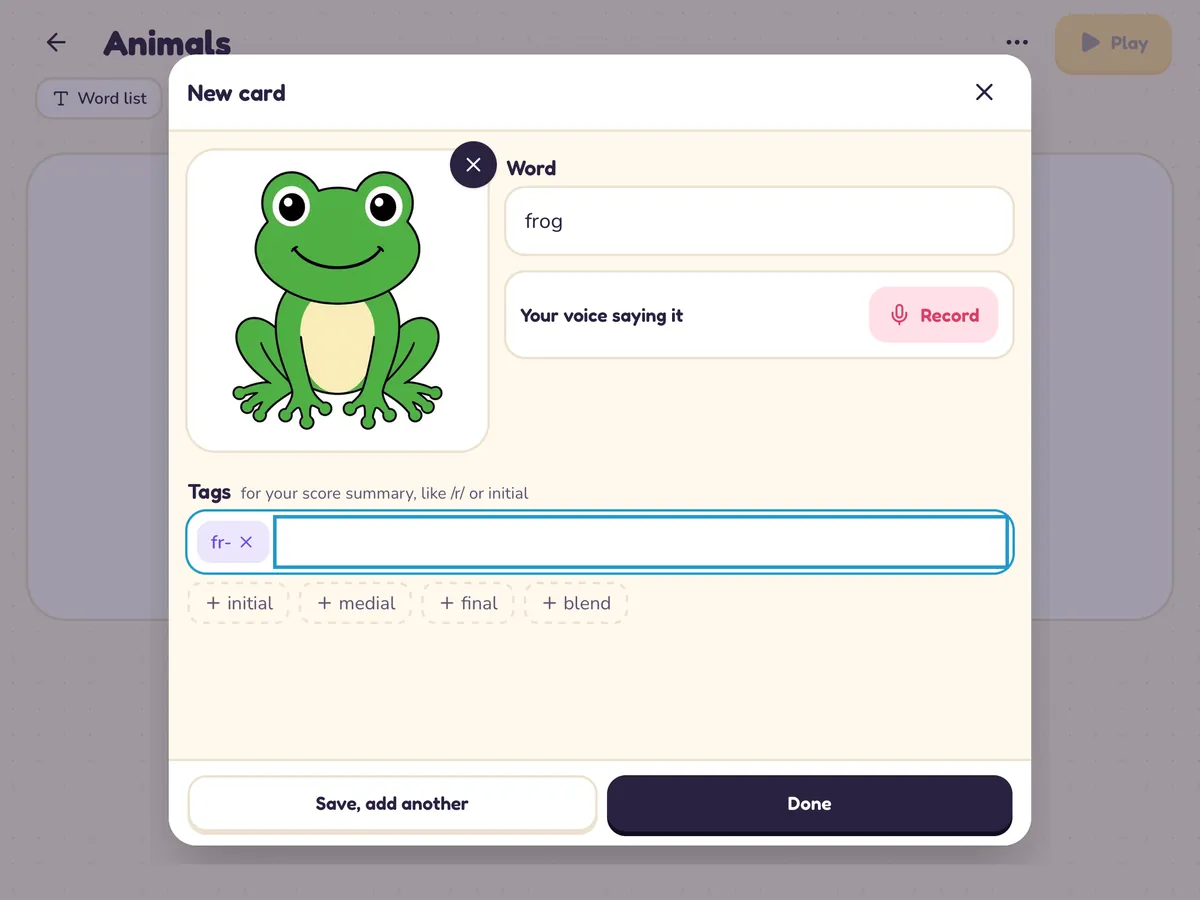
Tap New deck and pick a kind: word list, multiple choice, minimal pairs and more. Add a card for each word. Take a photo, use your picture set, or search symbols, and record your voice if you like. Have a lot of photos? Add many photos makes a card from each one.
2Pick a game
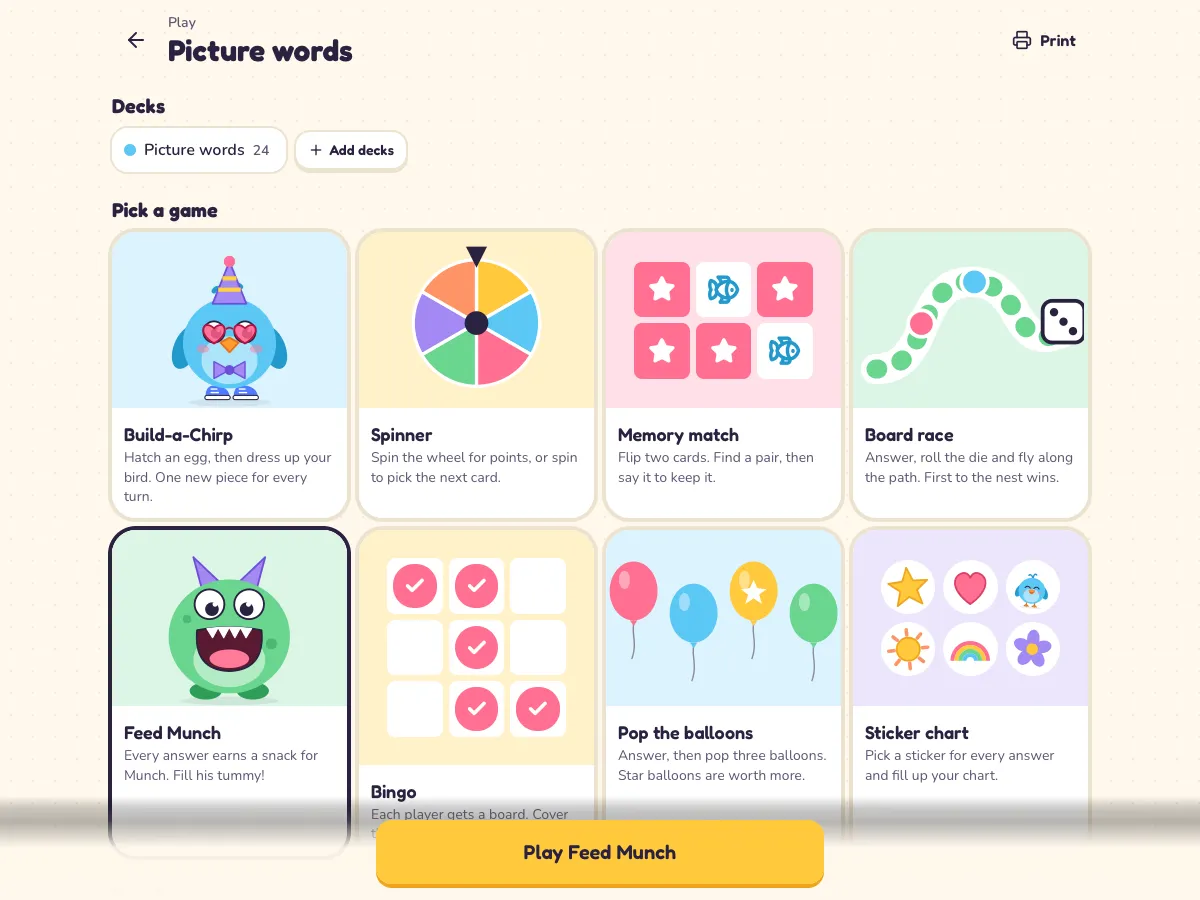
Tap Play on any deck and pick one of eight games. Up to four students can play. Type initials, not names. Nothing about students is saved.
3Tap ✓ or ✗
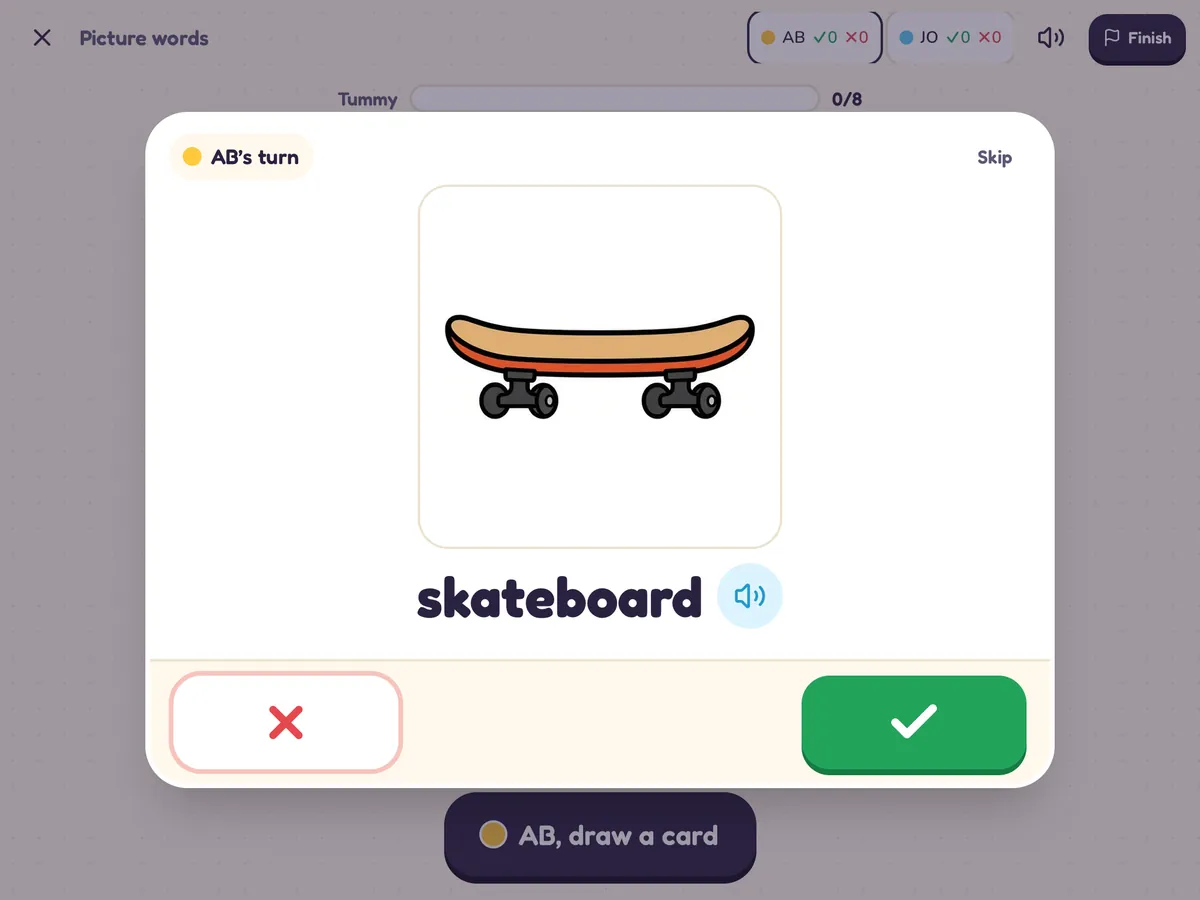
Each turn shows a card. When the student answers, tap ✓ or ✗ and the game moves on: a new piece for the bird, a spin, a roll of the die. For multiple choice and yes or no, the student taps the answer.
4Copy the score
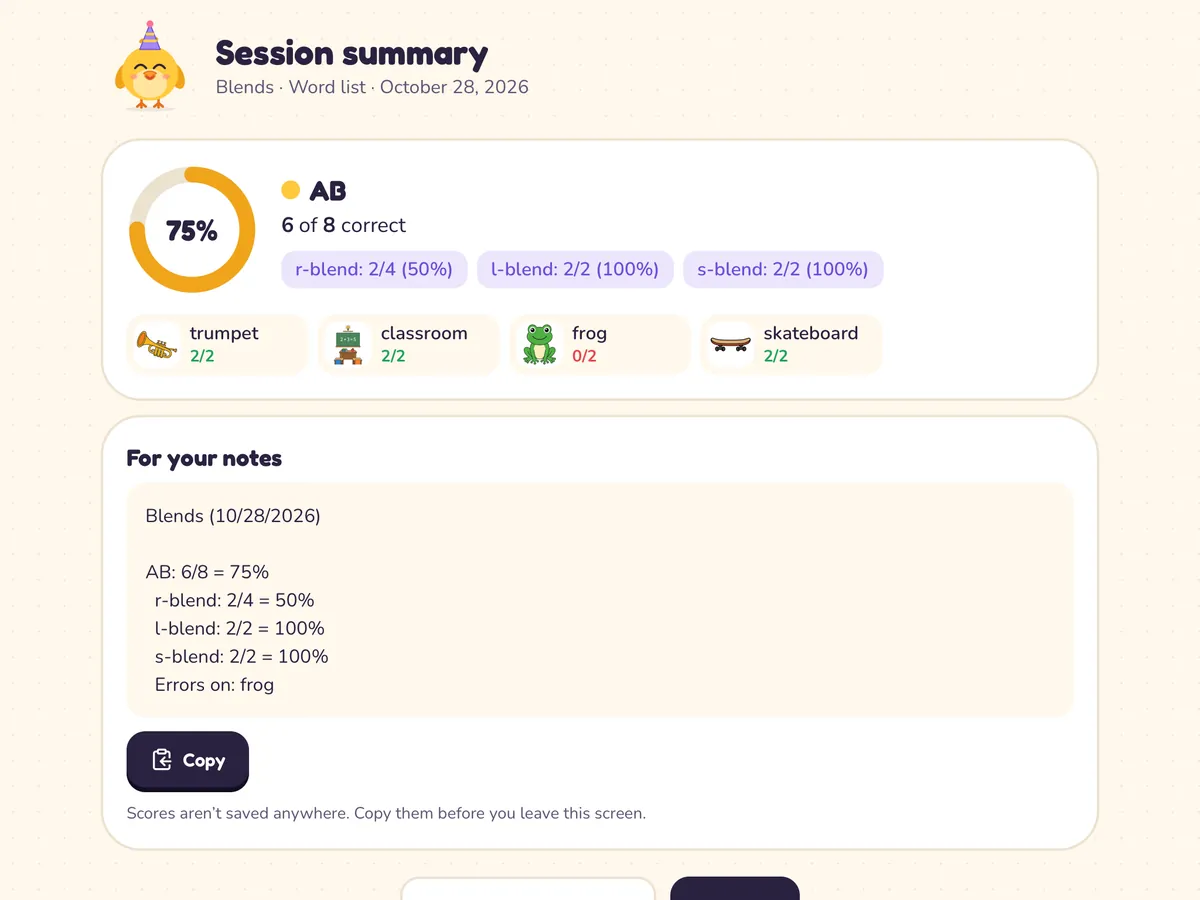
Tap Finish for the session summary, like “/r/: 18/25 = 72%”, by sound and by word. Tap Copy and paste it into your notes.
More you can do
Share with a student
Send a link so a student can play a deck at home. You choose how long it works and can turn it off any time.
Save pictures for later
Open Pictures on the home page to add photos before you need them. They’ll be under My photos when you make a card. Tap Select there to delete several at once.
Send to a teacher
Send another SLP or teacher a link, and they get their own copy of your deck to change however they like. Yours stays as it is.
Picture cards, a practice sheet, or bingo boards for any deck.
Your account
Make a free account with Google or your email, and your decks save to it and show up on every device.
Read-aloud
A natural voice reads questions out loud. Your own recording always plays first.
Works offline
Add it to your iPad's Home Screen. It works without internet and catches up later.
Private
No student accounts, no student names, and no ads or tracking.
Questions
›How do I put it on my iPad's Home Screen?
Open it in Safari, tap Share, then Add to Home Screen. It opens full screen, like an app.
›Why doesn't a word list read the word aloud?
So the student names the picture on their own instead of copying you. Tap the speaker button when you want to give a model.
›What are tags for?
Tags like /r/ or initial split up the score in the summary, so you can see each sound and position on its own.
›Can I use it on a smartboard or over video?
Yes. It runs in any web browser with big buttons. For teletherapy, share your screen.
›What happens to the scores?
They show in the summary at the end. They aren't saved anywhere, so copy them before you leave that screen.